Disable Push Notifications
Written By Mingjie Jiang
Last updated Almost 2 years ago
This is an early access feature available to a selected cohort users only. We’re still in early stages of building push notifications, and functions might change!
To disable web push notifications from Recess, follow the instructions for your specific browser below.
Google Chrome / Microsoft Edge
Google Chrome / Microsoft Edge
Click the three vertical dots in the top-right corner and select Settings.
Navigate to Privacy and security > Site Settings > Notifications.
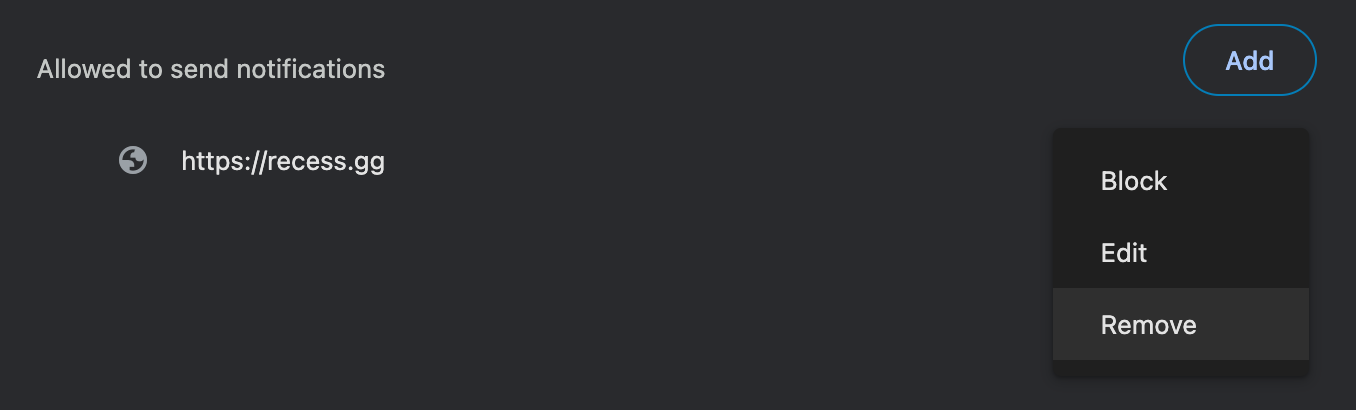
Under the “Allowed to send notifications” section, locate
recess.gg.Click the three dots next to
recess.ggand select Remove.
Mozilla Firefox
Mozilla Firefox
Click the three horizontal lines in the top-right corner and select Settings.
Go to Privacy & Security and scroll to the Permissions section.
Next to Notifications, click Settings.
Find
recess.ggin the list, select it, and click Remove Website.
macOS Safari
macOS Safari
Click Safari in the top menu and select Preferences.
Go to the Websites tab and click Notifications in the sidebar.
Locate
recess.ggin the list.Use the drop-down menu next to it to select Deny.
iOS App
iOS App
Open the Settings app.
In the search bar, type
Recessand select the Recess app from the result.Tap Notifications.
Toggle the Allow Notifications switch to Off.
Was this helpful?
Still need help? Share an idea